Visual Circuit Editor
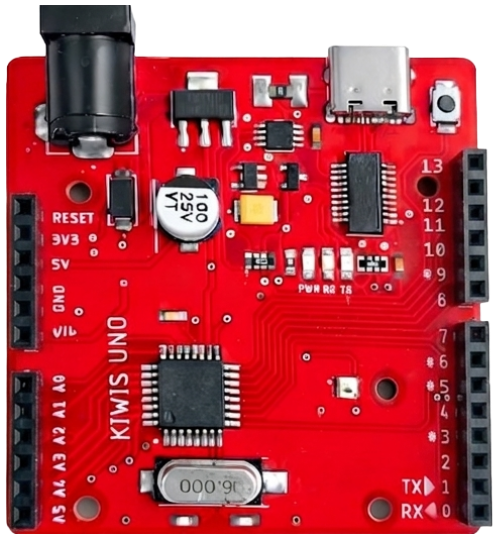
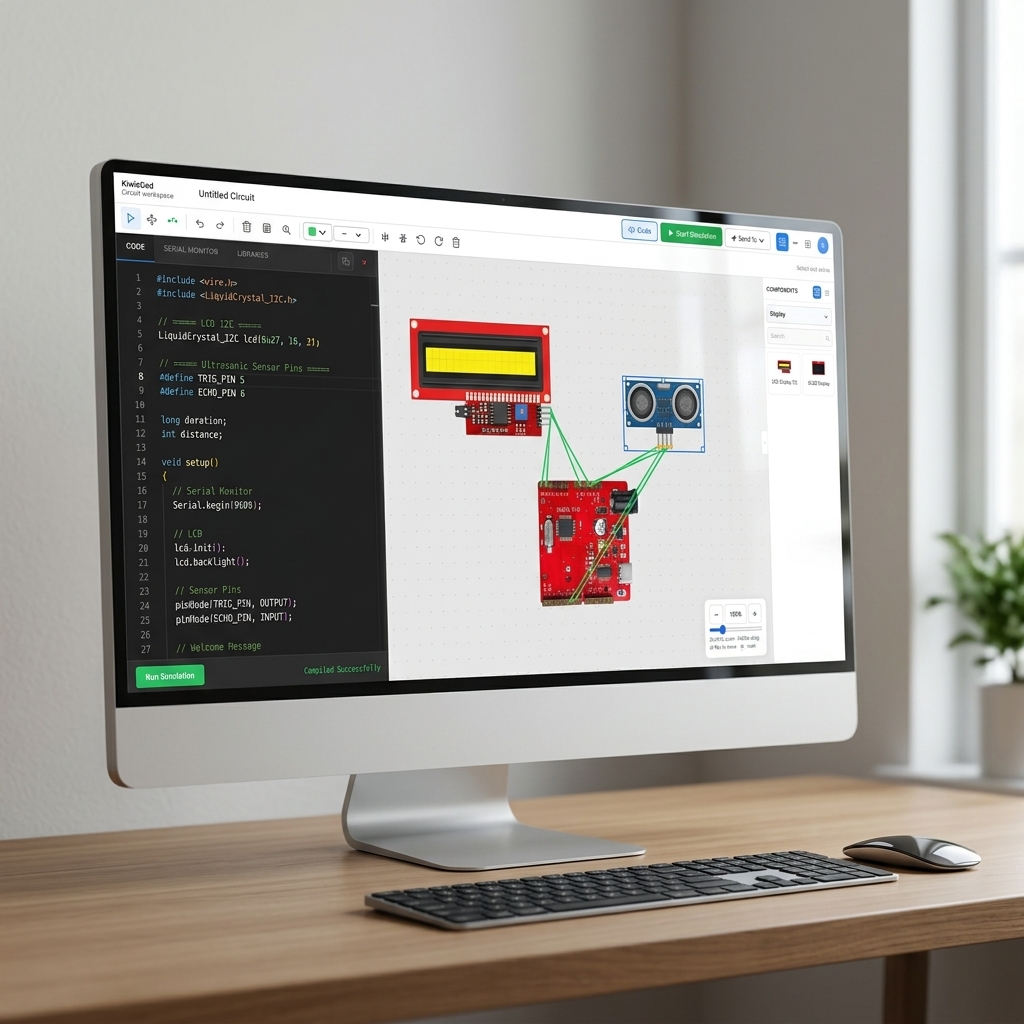
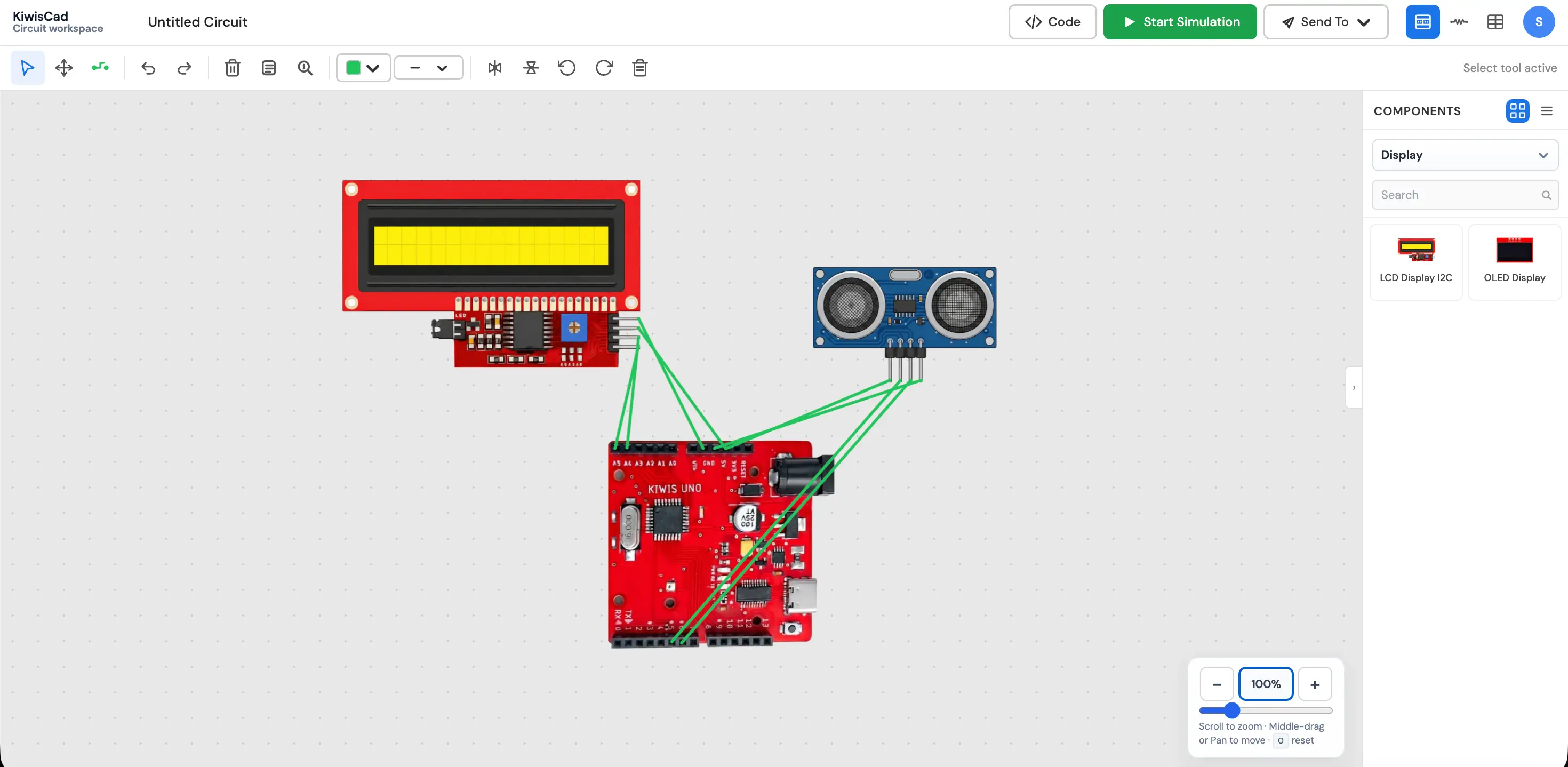
Build your circuits on a beautiful virtual canvas. Drag and drop your Arduino and components, and connect their wires easily before writing any code.
- Drag & drop components
- Clean virtual workspace
- Easy flexible wiring
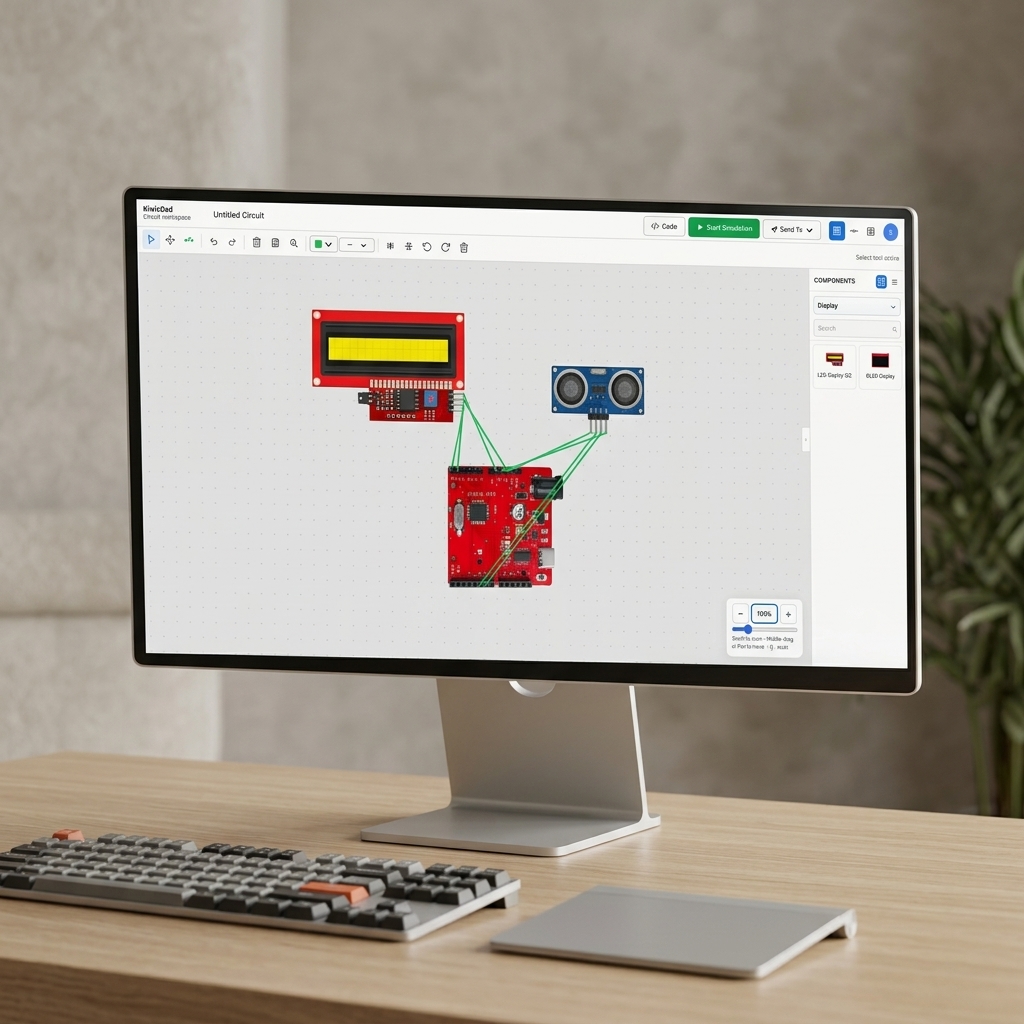
Wire parts, write your sketch, and watch pins respond live — no install and no board required.
Explore how KiwisCAD helps you move from circuit design to running firmware — step by step, without desktop tools.
Build your circuits on a beautiful virtual canvas. Drag and drop your Arduino and components, and connect their wires easily before writing any code.
Your code runs on a built-in simulator that mimics a real Arduino Uno. It handles all the pins, signals, and math just like the physical board.
Write your Arduino code directly in the browser using our powerful editor. Hit compile, and your code is instantly ready to run and test.
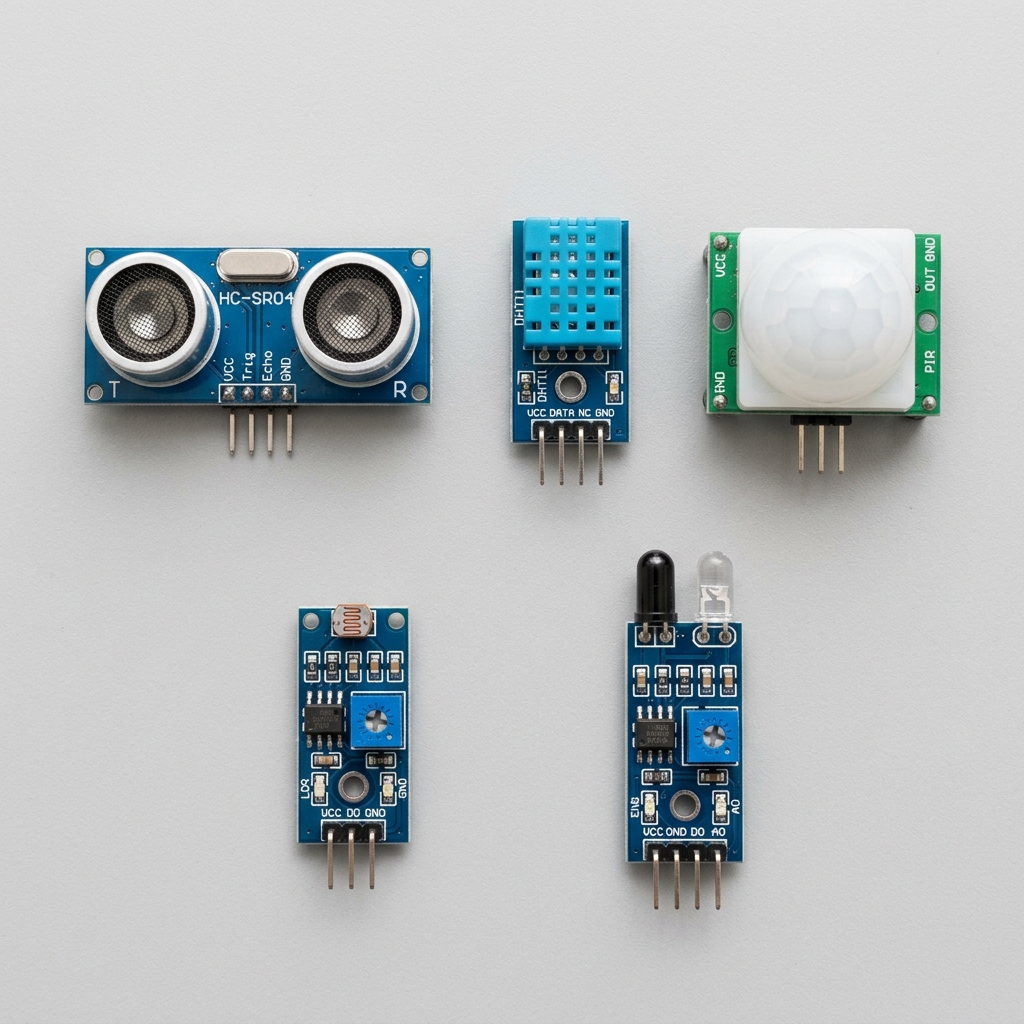
Experiment with a variety of virtual sensors including Ultrasonic distance, DHT temperature, PIR motion, light sensors, and IR obstacle detectors.
Watch your Serial output live while your simulation runs. Print sensor values and catch issues early without needing a USB cable.
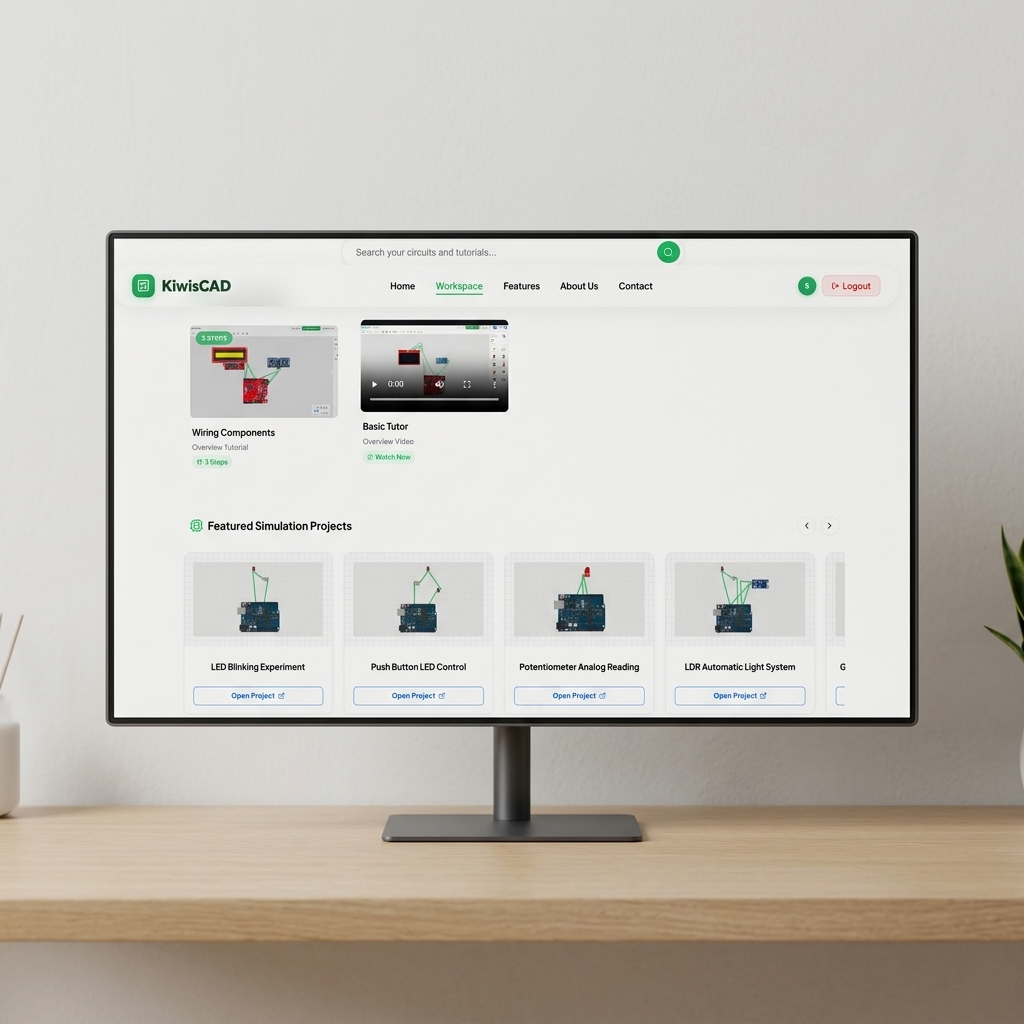
Learn quickly with interactive, step-by-step tutorials. Follow along to build circuits, write code, and simulate projects right in your workspace.
Open the KiwisCAD editor to place components, write firmware, compile sketches, and watch your circuit respond in real time — no separate tools required.
Follow the same workflow you use on the bench — design the circuit, write the sketch, then compile and simulate — entirely inside KiwisCAD.
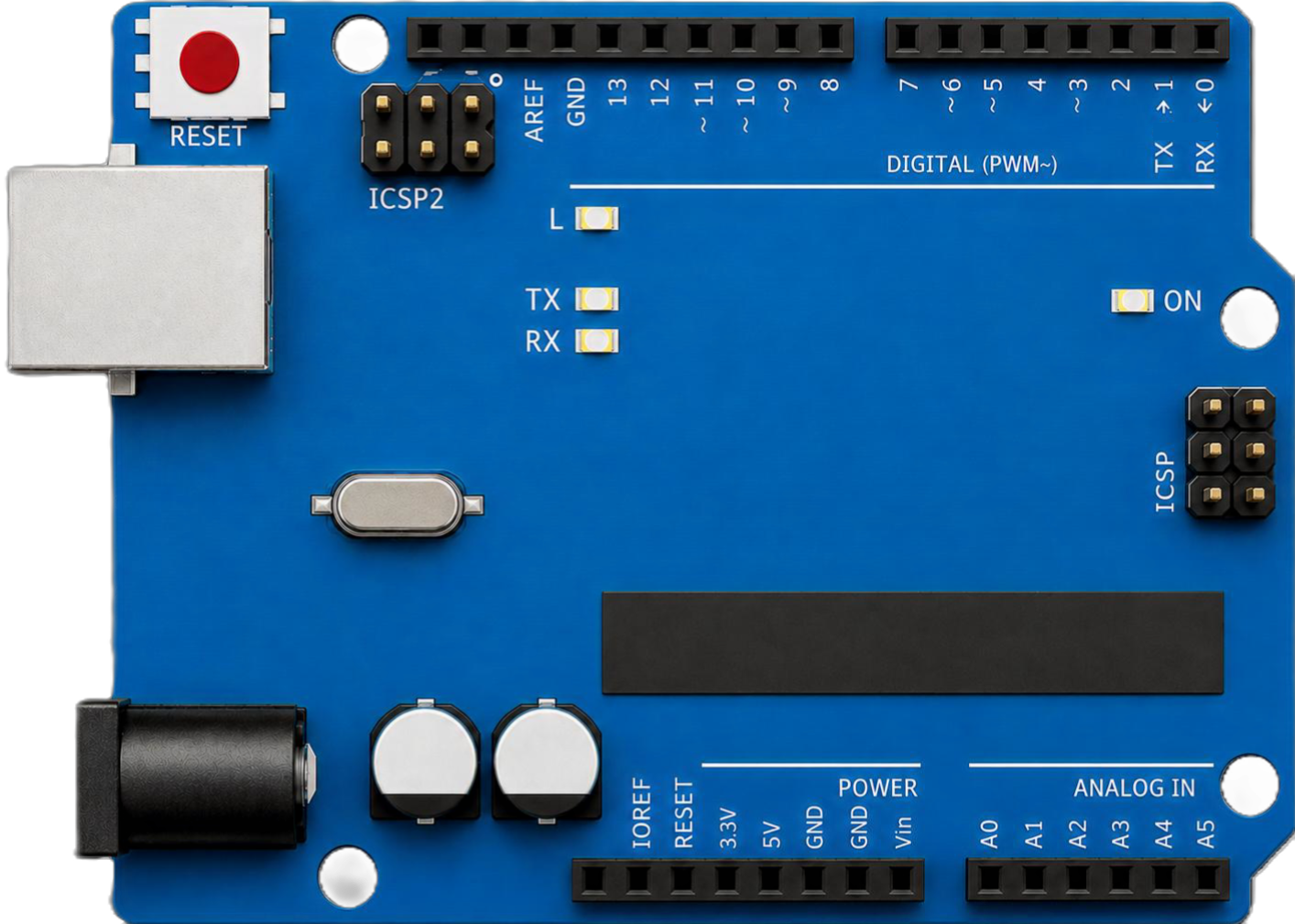
Place an Arduino Uno, wire up an LCD display, and connect an Ultrasonic sensor. Validate your hardware layout before writing any code.
Hear from engineers, students, and makers who use KiwisCAD to prototype Arduino projects faster.
KiwisCAD is a fully browser-based Arduino simulation platform. You can drag-and-drop virtual components onto a canvas, write real Arduino C/C++ sketches in the built-in Monaco code editor, compile firmware using Arduino CLI, and run hardware simulations on a cycle-accurate ATmega328P engine — all without installing any software on your machine.
No installation is required. KiwisCAD runs entirely in your web browser — Chrome, Edge, or Firefox are recommended for the best experience. Simply open the site, create a free account, and start building circuits immediately. Everything from compilation to simulation happens in-browser or on our secure servers.
KiwisCAD currently targets the Arduino Uno (ATmega328P). All sketches are compiled for this board, and the simulator faithfully models its GPIO pins, timers, UART serial output, analog inputs, PWM channels, and interrupt handling. Support for additional boards is planned for upcoming releases.
Head to the Examples Gallery and click Launch in Editor on any project — such as the LED Blink or Potentiometer Analog Reading examples. This opens a fully pre-wired workspace with starter code already loaded. Hit Start Simulation to see it run instantly. From there, tweak the code or components to start experimenting.
KiwisCAD integrates the hardware building and software writing phases into a single workflow. Instead of connecting real hardware, uploading code, and watching it fail, you can instantly run simulations in the browser. You also benefit from cloud saving, community sharing, and achievement tracking—all in a zero-install web application.
Open the Components panel on the right sidebar, search or browse by category, and drag parts onto the canvas. Click a component pin to begin drawing a wire, then click the destination pin to complete the connection. Use the scroll wheel to zoom and middle-click to pan the workspace. Wires automatically route around placed components.
Yes. KiwisCAD supports both a realistic breadboard / component view and a clean schematic diagram view. You can toggle between them at any time from the toolbar. Both views stay in sync — changes made in one are reflected in the other — so you can cross-validate your wiring before writing code.
The library includes 50+ virtual parts spanning Arduino boards, LEDs, resistors, capacitors, push buttons, potentiometers, sensors (LDR, DHT11, rain sensor, gas sensor, ultrasonic), displays (LCD I2C, OLED, 7-segment), actuators (buzzers, relays, servo, DC motor), and breadboard essentials. New components are added with each platform update.
Absolutely. Select any component on the canvas and press Delete or Backspace to remove it. Drag components to reposition them — connected wires will stretch to follow. You can also use Ctrl+Z / Cmd+Z to undo and Ctrl+Y to redo any placement or wiring action.
Yes. The Advanced Pin Editor allows you to customize individual pins on a component. You can alter the pin color, size, shape (circle, square, rectangle), hover color, and hover scale. You can also customize the text label's color, background, and font size. This is particularly useful for creating complex custom modules or clear educational diagrams.
After you compile your sketch, the resulting .hex firmware is loaded into KiwisCAD's in-browser ATmega328P simulator. The engine emulates the CPU cycle-by-cycle — running your actual machine code — so LEDs blink at the real delay timing, PWM signals drive motors at correct speeds, and sensor interrupts fire exactly as they would on hardware.
Yes. The built-in Monaco editor (the same engine used in VS Code) accepts standard Arduino C/C++ with full syntax highlighting and auto-completion. Click Compile to send your sketch to our server-side Arduino CLI pipeline, which builds it for the Uno target and returns the firmware hex ready for simulation — typically in a few seconds.
The Serial Monitor captures all Serial.print(), Serial.println(), and Serial.write() calls made by your sketch during the simulated run. You'll see sensor readings, debug logs, and state messages update in real time — identical to using the Serial Monitor in the Arduino IDE with a physical board connected over USB.
Double-check the following: (1) All component pins are correctly wired — a missing GND connection is the most common issue. (2) Your sketch compiled without errors before starting the simulation. (3) Pin numbers in code match the physical pins in your canvas. Use the Serial Monitor to print debug values and isolate the problem. If the issue persists, use the Contact page to report it.
Compilation usually takes just a few seconds on our secure servers using Arduino CLI. The simulator runs client-side in your browser using WebAssembly. It is highly optimized to run the ATmega328P instruction set in real-time, meaning your simulated circuits execute at the same speed as physical hardware.
You can explore the editor and run simulations without signing in. However, creating a free account unlocks project saving, your personal Workspace gallery, progress tracking across sessions, and access to the community features. Signing up takes under a minute and requires no payment information.
All saved projects live in your Workspace Gallery, accessible from the top navigation bar. Each project stores your full component layout, all wire connections, and your current sketch. Projects are saved to our secure cloud, so you can reopen, edit, and re-run simulations from any browser or device.
Yes. In your Workspace Gallery, hover over any project card to reveal the options menu. From there you can Rename, Duplicate (to branch a new version without losing the original), or Delete a project. Duplicating is useful when you want to try a different circuit approach while keeping your working version safe.
Click Forgot Password on the login page and enter your registered email address. You'll receive a reset link within a few minutes — check your spam folder if it doesn't arrive. Once reset, you can log in with your new password and all your saved projects will still be there.
As you use KiwisCAD, you earn XP and unlock achievements. There are milestones for saving circuits, running simulations, compiling code, sharing to the community, and maintaining login streaks. Earn enough XP to level up your profile rank—from 'Novice Tinkerer' up to 'Master Architect'. You can view your progress and global rankings on the Achievements page.
Yes. KiwisCAD is free to use for individuals, students, and educators. There's no hardware to purchase and no software to install, making it ideal for school labs, university courses, and STEM programs where access to physical Arduino kits may be limited. Teachers can assign specific example projects for students to complete directly in the browser.
Yes. Because KiwisCAD is entirely browser-based, it works on Chromebooks, Windows, macOS, and Linux machines without any OS-specific setup. Tablet support (iPad / Android) works for browsing and basic editing, though a keyboard and mouse provide the best circuit-building experience for detailed wiring work.
The Examples Gallery contains categorised starter projects (Beginner, Intermediate, Advanced) each with a pre-wired canvas and commented starter code. The Tutorials section walks through concepts step-by-step. The Community page lets you browse and fork circuits shared by other users for additional learning material.
Visit the Contact page to reach the KiwisCAD team directly. When reporting a simulation bug, please include: your browser name and version, a brief description of what you expected vs. what happened, and ideally a screenshot or the name of the circuit project. This helps us reproduce and fix issues faster.
The Community Gallery is a place to share your creations and learn from others. You can explore public circuits, sort them by newest, most parts, or alphabetically, and search for specific projects. If you see a circuit you like, you can open it as a copy in your own workspace to study the wiring and remix the code without affecting the original project.
No questions in this category yet.